
AI Assistant
Turn data questions into work you can review.
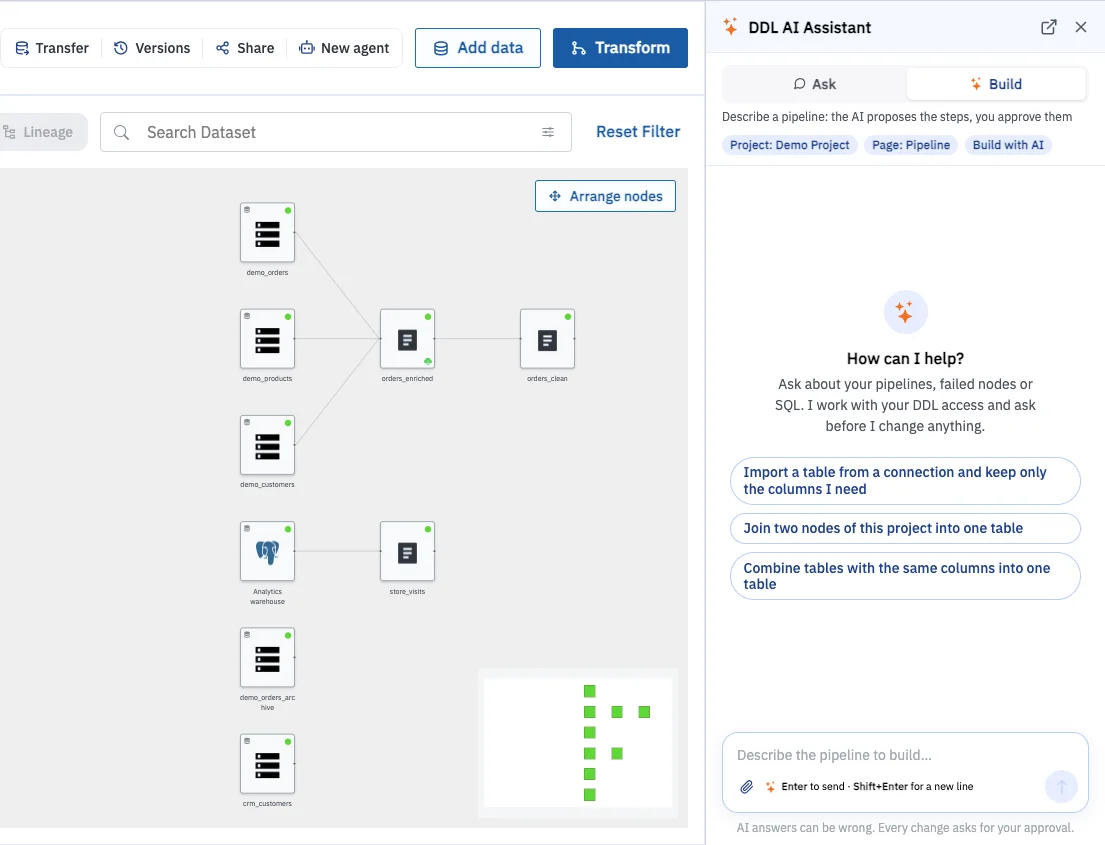
Ask about a dataset, investigate a failed node or describe the dashboard you need. DDL AI Assistant uses your project and page context, then presents proposed changes for your approval. Use Build when the work is a pipeline.
- Ask for answers & dashboards
- Build pipeline plans
- Approve changes before execution
The workflow
AI Assistant, step by step.
-
Choose the context
Open the assistant on your current page, or select a project or Data Repository tables in the AI workspace. Attach a supporting file when your administrator allows it.
-
Ask about the result you need
Use Ask for questions, diagnosis, charts and dashboards. A dashboard request proposes a Save dashboard card; an Ask Data answer can open in the chart builder with Save as chart.
-
Use Build for pipelines
On a project Pipeline page, switch to Build to request imports, SQL, joins, actions or schedules as a pipeline plan. Build is not the dashboard creation mode.
-
Review, then approve
Inspect proposed steps and previews. Approve & run executes an accepted change; cancel or ask for revisions when it is not right. Check removal warnings carefully: some deletions cannot be undone.
Capabilities
What makes the workflow work.
-
Context that travels with the question
Project, page, node and SQL context help focus the answer. Conversations continue between the side panel and full AI workspace; attachments depend on your data policy.
-
Ask Data, then save a chart
Ask about up to three Data Repository tables with read-only queries. Inspect the SQL and results, then use Save as chart to review the answer in the chart builder.
-
Dashboard proposals in Ask
Describe charts, tiles and filters in Ask. Review the Save dashboard card and chart previews before approving. AI Assistant and Dashboards must both be enabled.
-
Pipeline Doctor
Diagnose & fix investigates a failed node using available logs and lineage, quotes the evidence and proposes a correction for review.
-
SQL review and upstream audits
Explain SQL, review a query change’s downstream impact or audit a node and its upstream chain. Inspect findings and proposed fixes before making changes.
-
Configured models and AI Ops
Administrators connect models, set AI access and data policy, and monitor usage, cost and budgets in AI Ops. AI answers require a configured model and enabled features.
From overview to practice
Explore AI Assistant in the guide.
Learn when to use Ask or Build, attach files, inspect result cards and approve a pipeline or dashboard change. The guide also explains model setup and data policy.
Open the AI Assistant guideConnected capabilities
Keep the work moving.
FAQ
A few things worth knowing.
- Can the assistant change data without approval?
- Read-only questions can be answered directly. Changes proposed by the in-app AI Assistant require approval. Inspect the plan and any deletion warning before accepting; approval does not mean a change is reversible.
- How does AI dashboard creation work?
- Use the general AI Assistant in Ask, describe the project, charts and filters, and review the Save dashboard approval card. Build mode and Agent Studio builds are for pipelines, not dashboards.
- Which models can we connect?
- Administrators can configure Anthropic, Amazon Bedrock, Google Vertex AI, Azure OpenAI and OpenAI-compatible connections. Model availability and what may be sent to it depend on your installation and AI settings.
- Is AI available to every dashboard viewer?
- No. AI needs the Assistant service, enabled AI features, a connected model and appropriate access. Dashboard viewer accounts, public links and embedded dashboards do not offer the AI Assistant.